Overview#
The Data Lake screen is a file explorer. It shows files, not tables. Use it to look at what sits in a cloud bucket, upload a CSV or a zipped Delta table for a notebook, inspect a Delta folder's schema and history, and click a file to get a read snippet in the active cell.
Tables are a different view. The Lakehouse screen shows catalog tables by name (datasimple.<layer>.<table>) with grants, lineage and history; see Lakehouse and governance. The Data Lake screen is for the files underneath and for files that are not tables yet.
Who uses it:
- Data engineers check what landed in a bucket, upload test files and inspect Delta folders.
- Analysts upload a spreadsheet and read it in a notebook.
- Developers connect a cloud bucket for browsing and manage uploads from scripts.
Where it is: left rail → Data Lake (shown as Files in Administration role settings). The same tree also opens as the Data Lake tab in the side panel next to Notebooks and Lakehouse.
How it fits the platform: cloud browsing goes from DataSimple to your provider with the credentials you saved. Uploads land in storage that the Spark engine can read, so a notebook can use them straight away. See Architecture.
Key concepts#
| Term | Meaning |
|---|---|
| Cloud connection | A saved browse connection to AWS S3, Azure Data Lake (ADLS Gen2), Azure Blob Storage or Google Cloud Storage. Separate from Data Sources. |
| Root path | The folder a cloud connection opens at. |
| Uploaded file | A file sent through Local uploads → Upload, stored in your tenant's uploads folder. |
| Dataset | A ZIP upload (a Delta table or a multi-part Parquet folder) unpacked into your tenant's datasets folder and shown as one asset. |
| Cluster storage | Workspace storage the Spark engine reads: the uploads area and the notebook storage area, each with one folder per tenant. |
| Delta tables | Folders and Delta tables in the Spark engine's Delta storage. |
| Cloud Delta tables | Delta tables found under the lake browse location in S3 (any folder holding _delta_log/). |
| Upload quota | Total bytes a tenant may upload. Default 5 GB. |
How it works#
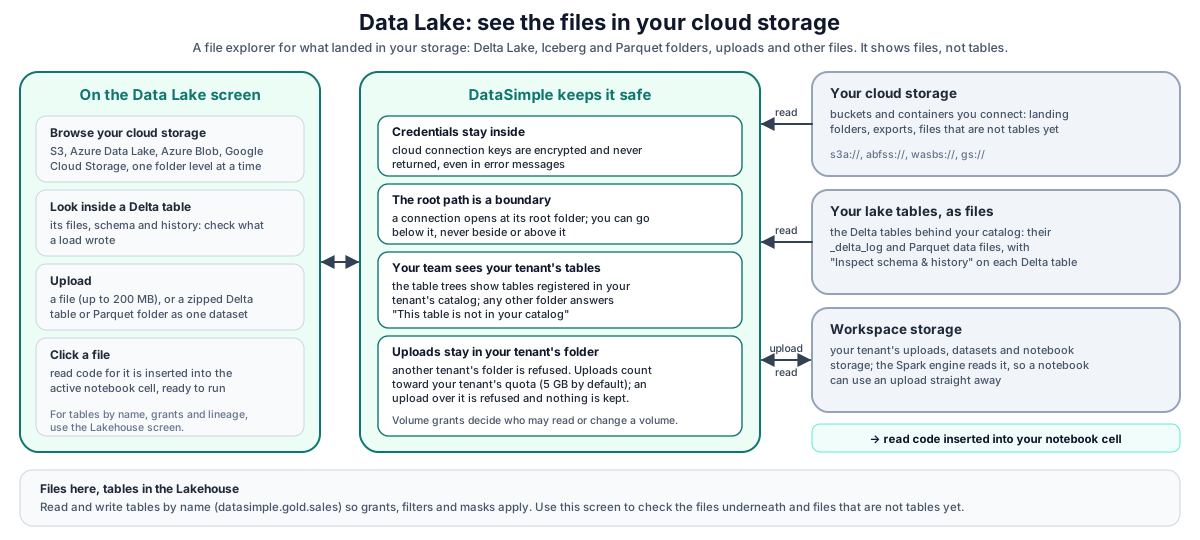
- Cloud connect. You add a connection for one of four providers. DataSimple encrypts the credentials and stores the connection for your tenant. Browsing lists one folder level at a time.
- Upload. A file goes to your tenant's uploads folder and counts toward the tenant's quota.
- Datasets. A ZIP is unpacked into your tenant's datasets folder and shown as one dataset.
- Cluster storage. Listing, new folders, moves, drag-and-drop uploads and deletes are limited to your tenant's folders.
- Insert. Clicking a file or table inserts a read snippet into the active cell. For a cloud file the snippet uses the provider's Spark URI scheme (
s3a://,gs://,abfss://,wasbs://).
Sections of the screen#
| Section | What it shows |
|---|---|
| Cloud connect | One root per provider (AWS S3, Azure Data Lake (ADLS Gen2), Azure Blob Storage, Google Cloud Storage), your tenant's connections under each, then folders and files. + adds a connection. |
| Spark/Delta Reader | Uploaded datasets as single assets; internal chunk files and _delta_log are hidden. ZIP uploads a zipped Delta table or Parquet folder. Click a row to insert a read snippet. Expand it to see the next three sections. |
| Delta tables | Inside Spark/Delta Reader. Folders and Delta tables in the Spark engine's Delta storage. Each Delta table has Inspect schema & history (schema, metadata, history and lineage). |
| Cloud Delta tables | Inside Spark/Delta Reader. Delta tables under the S3 lake browse location, with their data files and _delta_log on expand. Always shown. When the lake browse location is not set up, it says so instead of listing tables. |
| Cluster storage | Inside Spark/Delta Reader. Your tenant's uploads and notebook storage. New folder, move, drag-and-drop upload, delete. |
| Local uploads | Files you uploaded, newest first, with size and type. Upload accepts any extension. |
Cloud connections#
In the UI: Cloud connect → +, pick the provider, enter a name, Root path (optional) and credentials, then click Save & Test. It saves the connection and tests it in one step. If the test fails, the connection is still saved and the error is shown.
Through the API:
POST /api/cloud-connectionswith{ name, provider, root_path, credentials }.provideriss3,gcs,azure_bloboradls. The credentials are encrypted before they are stored and are never returned.GET /api/cloud-connectionslists your tenant's connections without credentials.POST /api/cloud-connections/:id/testlists the root to check the credentials; it answers{ ok: true }or{ ok: false, error }, with secrets removed from the error text.GET /api/cloud-connections/:id/list?path=lists one level. Withoutpathit lists the root path. The response is{ folders: [{name, path}], files: [{name, path, size, modified}], bucket | container | filesystem, account }.DELETE /api/cloud-connections/:idremoves the connection (not the data).
Uploads and datasets#
| Upload | How | Limit | Where it lands |
|---|---|---|---|
| Single file | Local uploads → Upload, or POST /api/notebooks/files (form field file) |
200 MB per file | Your tenant's uploads folder. |
| ZIP dataset | Spark/Delta Reader → ZIP, or POST /api/notebooks/datasets/zip (form field file, .zip only) |
2 GB | Your tenant's datasets folder, one sub-folder per upload. |
| Drag into Cluster storage | Drop files on a folder | About 100 MB | The folder you dropped on. |
Single files and ZIP datasets count toward the tenant quota (default 5 GB in total). An upload that would go over the quota is rejected with 413 and quotaBytes, and nothing is kept. Drag-and-drop into Cluster storage is checked against the quota too: it is refused with 413 when the upload would go over it. It does not add to the total, and its 413 answer has no quotaBytes. Many large uploads at once are queued rather than refused.
GET /api/notebooks/files/:id/content returns the file. DELETE /api/notebooks/files/:id deletes the file or dataset permanently.
What you can reach#
| Rule | Behaviour |
|---|---|
| Tenant folders | In Cluster storage you can open and write only your own tenant's folder. Another tenant's folder returns 403 Access denied: path is outside your tenant space. |
| Protected locations | The production Delta data folder is read only from this screen. The storage root folders cannot be deleted; only their contents. |
| Delta tables tree | Paths must stay inside the Delta storage location; .. is refused. A folder that does not hold or lead to one of your tables answers 403 This folder is not in your catalog. |
| Cloud Delta tables | Only paths inside the configured lake browse location are listed. A table that is not in your catalog answers 403 This table is not in your catalog. |
| Volumes | Inside a governed volume, listing files needs READ VOLUME and changing files needs WRITE VOLUME. Another tenant's volume answers 403 This volume is not in your catalog. Outside your volumes and tables, a storage folder answers 403 This folder is not in your catalog. |
| Notebook code | Separately, your administrator can restrict which storage locations notebook code may use. See Notebooks. |
| Tenant data | Cloud connections, uploads and datasets are listed, read, moved and deleted only within your tenant. |
Moving or deleting a file keeps the uploads list in step: a moved file keeps working from its new location, and deleting a folder removes every upload under it. If a move fails, nothing changes.
REST API#
Call these with Authorization: Bearer <PERSONAL_TOKEN> against https://<your-datasimple-host>.
| Method | Path | Purpose |
|---|---|---|
| GET, POST | /api/cloud-connections |
List, create cloud connections. |
| DELETE | /api/cloud-connections/:id |
Remove a connection. |
| POST | /api/cloud-connections/:id/test |
Test by listing the root. |
| GET | /api/cloud-connections/:id/list?path= |
Browse one folder level. |
| GET, POST | /api/notebooks/files |
List, upload single files. |
| GET | /api/notebooks/files/:id/content |
Download a file. |
| DELETE | /api/notebooks/files/:id |
Delete a file or dataset (permanent). |
| GET | /api/notebooks/datasets, /api/notebooks/datasets/:id/contents?path= |
Datasets; folder contents. |
| POST | /api/notebooks/datasets/zip |
Upload a ZIP dataset. |
| GET | /api/notebooks/spark/s3-tables |
Delta tables under the lake browse location. |
Developer examples#
1. Add and browse an S3 connection#
const base = "https://<your-datasimple-host>";
const headers = { "Content-Type": "application/json", "Authorization": "Bearer <PERSONAL_TOKEN>" };

const conn = await fetch(`${base}/api/cloud-connections`, {
  method: "POST", headers,
  body: JSON.stringify({
    name: "landing-s3", provider: "s3", root_path: "landing/",
    credentials: { bucket: "<bucket>", region: "<region>",
                   accessKeyId: "<access key id>", secretAccessKey: "<secret>" },
  }),
}).then(r => r.json());

await fetch(`${base}/api/cloud-connections/${conn.id}/test`, { method: "POST", headers });

const listing = await fetch(
  `${base}/api/cloud-connections/${conn.id}/list?path=landing/orders/`, { headers }
).then(r => r.json());
// { folders: [{ name: "2026-10-28", path: "landing/orders/2026-10-28" }],
//   files:   [{ name: "orders.csv", path: "landing/orders/orders.csv", size: 18342, modified: "..." }],
//   bucket: "<bucket>" }
2. Upload a CSV and read it in a notebook#
curl -s -X POST https://<your-datasimple-host>/api/notebooks/files \
  -H "Authorization: Bearer <PERSONAL_TOKEN>" \
  -F "file=@orders.csv"
# 201 { "id": 41, "filename": "orders.csv", "size_bytes": 18342, "mime_type": "text/csv", ... }
Click the file in Local uploads to insert a read snippet in the active cell. To make it a governed table, write it with a helper:
orders = spark.read.option("header", True).csv("<path from the inserted snippet>")
save_table(orders, "bronze.orders_upload")     # registered, lineage recorded
3. List Delta tables under the lake browse location#
curl -s https://<your-datasimple-host>/api/notebooks/spark/s3-tables -H "Authorization: Bearer <PERSONAL_TOKEN>"
# { "success": true, "enabled": true, "root": "...", "tables": [{ "name": "silver/orders", "path": "s3a://..." }] }
When the lake browse location is not enabled, the answer has enabled: false and an empty tables list. Read such a table by its catalog name in a notebook, not by the path.
Security and permissions#
Your team sees your tenant's tables, nobody else's. The Delta tables and Cloud Delta tables trees show the tables registered in your tenant's catalog (and the folders that lead to them), whoever on your team created them. Opening another table in Cloud Delta tables answers This table is not in your catalog. Opening another folder in Delta tables or Cluster storage answers This folder is not in your catalog. Platform administrators see the whole lake.
A connection's root path is a boundary. When a Data Lake connection has a root path, you can browse that folder and the folders below it, never beside or above it (This connection is limited to the folder ...).
Sign-in and access. Every call needs a session or a personal token. Cloud connections, datasets and uploading or deleting files need the Data Lake (Files) permission in your role. Listing your uploads and using Cluster storage are also available from the notebook editor with the Notebooks permission.
Tenant. Cloud connections, uploads and datasets are stored and listed per tenant. Cluster storage is split into per-tenant folders.
Credentials. Cloud credentials are encrypted at rest and never returned. Provider error messages are filtered so keys, secrets, tokens and signatures are not shown.
Audit. Uploads (
file.upload), deletes (file.delete) and Cluster storage actions (new folder, move, upload, delete) appear in History.Tables stay governed. Browsing files does not grant table access. Reads by catalog name in notebooks apply grants, row filters and column masks; path reads of registered tables are resolved to the table. A path read inside another tenant's table, volume or folder, or a lake folder that is not one of your tables, is refused with The lake path … is not in your catalog.
Settings you can change#
| Setting | Where | Effect |
|---|---|---|
| Cloud connections | Cloud connect → + | Add, test and remove browse connections for your tenant. |
Your administrator can change the tenant upload quota (default 5 GB) and can set up the lake browse location that fills the Cloud Delta tables section.
Monitoring and troubleshooting#
- History shows uploads, deletes and Cluster storage actions with who did them.
| Message | Meaning |
|---|---|
Access denied: path is outside your tenant space. (403) |
The path is in another tenant's folder. |
... read-only from the notebook app. (403) |
The path is the protected production Delta folder. |
Refusing to delete protected root ... (403) |
Delete the contents, not the root folder. |
Path is outside the Delta storage root. (403) |
The Delta tables tree was asked for a path outside its location. |
path is outside the configured S3 bucket (403) |
Cloud Delta tables was asked for another bucket. |
This folder is not in your catalog. (403) |
The folder does not hold or lead to one of your tenant's tables or volumes. |
This table is not in your catalog. (403) |
The Cloud Delta table is not registered in your tenant's catalog. |
This volume is not in your catalog. (403) |
The path is inside another tenant's volume. |
This connection is limited to the folder "…". (403) |
The cloud connection has a root path, and you asked for a folder beside or above it. |
Path segments "." and ".." are not allowed. (403) |
Use plain folder names in the cloud connection path. |
Tenant upload quota exceeded. … (413) |
The tenant quota is used up. Delete old uploads. Upload and ZIP answers also include quotaBytes. |
file too large (cap ~100 MB) |
Use Upload (200 MB) or a ZIP dataset (2 GB) instead of drag-and-drop. |
Unsupported provider "..." |
Only s3, gcs, azure_blob, adls are supported. |
Cloud Delta tables is empty with enabled: false |
The lake browse location is not enabled. Ask your administrator. |
Limits and known issues#
| Limit | Default |
|---|---|
| Single file upload | 200 MB |
| ZIP dataset | 2 GB |
| Drag-and-drop into Cluster storage | About 100 MB |
| Upload quota per tenant | 5 GB |
- Deleting an uploaded file or dataset is permanent; there is no trash for files.
- Browsing lists one folder level at a time. For AWS S3 and Google Cloud Storage, a folder shows at most about the first 1,000 entries. Azure connections list every entry.
Related content#
- Lakehouse and governance
- Lake storage
- Notebooks
- Data sources
- App server and security
- Amazon S3 (concepts only): https://docs.aws.amazon.com/AmazonS3/latest/userguide/Welcome.html
- Azure Data Lake Storage: https://learn.microsoft.com/azure/storage/blobs/data-lake-storage-introduction
- Delta Lake: https://docs.delta.io/latest/index.html
- Apache Parquet: https://parquet.apache.org/docs/