Overview#
This chapter covers the screens that shape who can do what, and how each person's workspace behaves:
| Screen | Rail label | Who |
|---|---|---|
| Settings | Settings | Every user whose role includes it |
| Administration | Administration | Administrators |
| ELS_DB | ELS_DB | Users whose role includes it (usually administrators) |
| Kinetic | Kinetic | Users with the Notebooks screen; see 27-kinetic-pen.md |
| Ingestion | Ingestion | Administrators (jobs, Activity Logs, Error Logs) |
| Usage | Usage | Users whose role includes it; see 15-observability.md |
Two layers decide access, and they are independent:
- Screen access decides which screens (and the API calls behind them) a role may use. It is managed in Administration → Roles.
- Data grants (SELECT, MODIFY, MANAGE and so on, plus row filters and column masks) decide what data a person may read or change. They are managed in the Lakehouse screen and in Administration → Governance.
A role template only sets screens; it never grants data. For sign-in, tenants and calling the API from scripts, see 19-app-server-and-security.md.
Key concepts#
| Term | Meaning |
|---|---|
| Role | A named set of screens with a level. Each user has exactly one role. |
| Administrator | A user whose role is an administrator role (for example Admin, Super Admin or System Administrator, or any role with level 100 or more). |
| Screen access | Whether a role may use a screen. Hiding a screen also blocks the API calls behind it. |
| Screen key | The short name of a screen used in role templates and API answers, for example notebooks or deploy. |
| Role template | A ready-made screen set: Data Engineer, Data Analyst, Data Steward. |
| Personal API token | A dsp_... token that lets a script call the DataSimple API as its owner, without a browser. |
| Protected account | An account (by default admin) whose password, lock state and profile only that account itself can change. |
Screens and their keys#
| Screen | Key | Screen | Key |
|---|---|---|---|
| Notebooks | notebooks |
Bronze loads (Bronze) | bronze |
| Data Source (Data Sources) | data |
Workflow | workflow |
| Lakehouse (Lake Catalog) | catalog |
Databridge (DataBridge) | databridge |
| Data Lake (Files) | files |
ELS_DB | elsdev |
| Schedules (Jobs) | jobs |
Sarah | sarah |
| History (Activity) | activity |
Agent (AI Agent) | agent |
| Lineage | lineage |
Usage | cost |
| Pipelines | pipelines |
Settings | settings |
| Deployment | deploy |
Administration | admin |
| Log (Logs) | log |
Dataflow | airflow (the key name is historical; the screen is Dataflow) |
| Data Quality | dataquality |
Semantics | semantics |
| DataShare (Sharing) | sharing |
Where the Administration → Roles screen uses a different label than the rail, it is shown in brackets.
How it works#
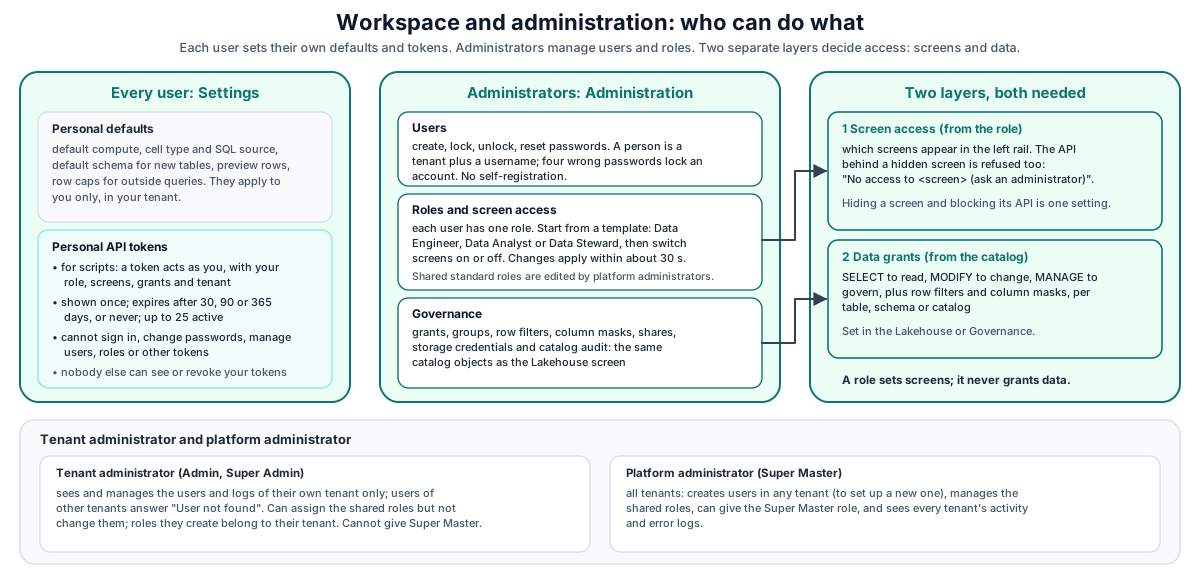
The left rail and the API use the same screen-access decision, so hiding a screen and blocking its API are one setting.
Personal settings#
Open Settings to set your own defaults. They apply to you only, within your tenant.
| Setting | Effect |
|---|---|
| Default compute | Compute profile for new notebooks, or serverless |
| Default cell type | Type of a new cell (SQL, Python, Spark and so on) |
| Default SQL source | Engine a new SQL cell runs against |
| Default Delta schema | Schema new lake tables go into by default |
| Preview rows | Rows returned for a result preview |
| Maximum query rows | Your cap on rows per external database query; DataSimple also applies its own ceiling |
| Catalog database limit | How many databases the Spark catalog tree lists (capped) |
| Information schema table limit | How many tables the information_schema snapshot covers (capped) |
The Settings screen also shows catalog status and the Personal API tokens section.
Personal API tokens#
A personal API token lets a script call DataSimple as you. Send it as Authorization: Bearer <PERSONAL_TOKEN>.
Create. Settings → Personal API tokens → Create token. Give it a name (up to 100 characters) and an expiry of 30, 90 or 365 days, or no expiry. The token is shown once. DataSimple keeps only a fingerprint of it and a short visible prefix (dsp_abcd...), so a lost token cannot be recovered: revoke it and create a new one.
List and revoke. The same section lists your tokens (name, prefix, expiry, last used) and lets you revoke any of them. You can have at most 25 active tokens. Nobody, administrators included, can see or revoke another user's tokens.
How a token acts. A request with a token runs exactly as you would: same role, same screens, same data grants, same tenant. If you are moved to another tenant, your old tokens stop working. If your account is locked, your tokens are refused.
What a token can and cannot call.
| Allowed | Refused with 403 TOKEN_NOT_ALLOWED |
|---|---|
| Any API your role and grants allow (notebooks, Spark SQL, catalog, pipelines, workflows, DataBridge, data quality, sharing and so on) | Creating or revoking tokens |
GET /api/auth/me (who am I) |
Sign-in, sign-out and password changes |
| Listing your own tokens | User, role and role template administration |
| Listing Delta Sharing recipients and dbt clients | Creating, changing, revoking or deleting Delta Sharing recipients or dbt clients, and changing a dbt client's grants |
| Answer | Meaning |
|---|---|
401 TOKEN_INVALID |
Unknown, malformed, expired or revoked token |
401 ACCOUNT_LOCKED |
The token's user is locked |
403 TOKEN_NOT_ALLOWED |
This action needs a person signed in to the application |
| 503 | The token could not be checked right now; retry |
Tokens are never written to logs.
Tenant administrators and platform administrators#
| Tenant administrator (Admin, Super Admin) | Platform administrator (Super Master) | |
|---|---|---|
| Users | Sees and manages the users of their own tenant only. Users of other tenants do not appear (and answer User not found). | All tenants |
| New users | Created in their own tenant | In any tenant (used to set up a new tenant) |
| Super Master role | Cannot give it to anyone | Can give it |
| Shared roles | Can assign them; cannot edit, delete or change their screens (a change would affect every tenant) | Manages them |
| Roles they create | Belong to their tenant; fully manageable. Exception: in the platform tenant (001) every role is shared, so only a platform administrator can change it |
Any |
| Activity and error logs | Their own tenant | All tenants |
Users#
Administration → Users lists, creates, edits, locks, unlocks, resets passwords for and deletes users.
- A new user needs a username, email, password and a role. A tenant administrator's new users are created in their own tenant; a platform administrator also chooses the tenant (three digits,
000to999). - Usernames are unique within a tenant, ignoring upper and lower case (
Aliceandaliceare the same name). Creating a user with a name already used in the tenant, or a platform administrator moving a user into a tenant that already has that name, is refused with 409 That username is already taken in this workspace. The same username in another tenant is a different person. - Self-registration is not available; administrators create users.
- You cannot delete your own account, and users with an administrator role cannot be deleted.
- A protected account (by default
admin) can have its password, lock state and profile changed only by itself. - After four wrong passwords an account is locked until an administrator unlocks it.
Roles and role templates#
Administration → Roles creates and edits roles. A new role gets the Notebooks screen by default. You can start from a template:
| Template | Level | Screens (rail labels) |
|---|---|---|
| Data Engineer | 50 | Notebooks, Pipelines, Deployment, Schedules, Dataflow, Data Lake, Lakehouse, Semantics, Data Quality, DataShare, Workflow, Databridge, Data Source, Bronze loads, Lineage, History, Log, Agent, Sarah |
| Data Analyst | 30 | Notebooks, Lakehouse, Semantics, Data Quality, Lineage, Sarah, Agent |
| Data Steward | 40 | Notebooks, Lakehouse, Semantics, Data Quality, DataShare, Lineage, History, Log |
Every screen can be switched on or off afterwards. Administrator roles cannot be deleted, and a role still assigned to users must be emptied first.
Shared roles are the roles owned by the platform tenant (001), such as the standard roles (Super Admin, Data Engineer and the others). Every tenant can assign them, but only a platform administrator can change them. Super Master is a platform role: only a platform administrator can give it. A role a tenant administrator creates belongs to their tenant and they can manage it fully, except in the platform tenant, where every role is shared.
The Data Engineer template includes Deployment, so a Data Engineer can compare environments, promote, send promotion requests and roll back (see 16-deployment.md). Adding, editing or removing environments, and approving or rejecting someone else's promotion request, still require an administrator.
Screen access#
In Administration → Roles, select a role and switch screens on or off, then save. Changes apply to that role's users within about 30 seconds.
| Role | Screens |
|---|---|
| Administrator role | Every screen except those explicitly switched off. New screens added in a later DataSimple version are on automatically |
| Any other role | Only the screens switched on |
| No role | None |
When a role lacks a screen, the screen is hidden from the rail and its API calls answer 403 No access to <screen> (ask an administrator). A few calls that the notebook editor needs to load (your settings, Data Sources, file listings, Spark) belong to the Notebooks screen, so a role with only Notebooks still has a working editor. The Kinetic board follows the Notebooks screen.
Administration → RoleAgent is a shortcut that switches the Agent screen on or off per role.
Governance#
Administration → Governance is a console over the catalog and sharing: Catalog, Privileges, Groups, Storage (credentials and external locations), Row / Column (filters and masks), Shares, Functions / Models, Bootstrap (managed catalog setup) and catalog audit. It works on the same objects as the Lakehouse screen, so a role with either the Lakehouse or the Administration screen can use these features, subject to data grants. The Shares section also needs the DataShare screen: without it, shares, recipients and the access log do not load there. See 07-lakehouse-and-governance.md.
Git integration (admin page setup)#
Administration → Git integration connects one environment's workspace to one branch of a GitHub repository. It is optional and sits next to the built-in Deployment screen, which works the same with or without it. Until it is switched on here, nobody sees anything of Git. Once saved and switched on, the Deployment screen shows a Git panel (Check, Commit all, Update from Git). How developers use that panel is in the developer guide, chapter Git integration.
1. Prepare GitHub (once).
Create a repository for DataSimple objects, for example
datasimple/ds_git_deploy. It can be empty.Create one branch per environment, named as the business works:
Environment Branch (example) Dev devTest testQA qaPreProd preprodProduction mainAny number of environments works; each one uses its own branch. Changes move from one branch to the next by pull request in GitHub. Protect the QA, PreProd and Production branches in GitHub so they change only through a reviewed pull request.
2. Create an access token.
In GitHub, create a fine-grained personal access token limited to that one repository, with Contents: Read and write. One token per environment is best, so each can be revoked on its own. An environment that only updates from Git (for example Production) can use a token with Contents: Read-only; Commit all then fails there, which is usually what you want.
3. Fill in the admin page, in each environment.
| Field | What to enter |
|---|---|
| Use Git in this environment | On. Switch it off to hide the Git panel again; the settings are kept. |
| Environment name | Dev, Test, QA, PreProd, Production … Shown on the Git panel. Required. |
| Repository | owner/name, or its GitHub address (https://github.com/owner/name). |
| Branch | This environment's branch, for example qa. It must already exist in GitHub. |
| Folder in the repository | Default datasimple. DataSimple reads and writes only inside this folder; other files in the repository are never touched. Use the same folder in every environment. |
| GitHub access token | The token from step 2. Stored encrypted and never shown again. To keep the saved token, leave the field empty when you save other changes; to replace it, paste a new one. |
| Replace when updating from Git | Optional. Text this environment swaps in notebook code and settings when it updates from Git, for example dev_ → qa_ or retail_dev → retail_prod. Applied in order; leave empty if nothing differs. Replacements never change object ids. |
Press Save. The page confirms whether the Deployment screen now shows the Git panel.
4. First commit. In Dev, open Deployment → Git, press Check, then Commit all. The branch now has the datasimple folder with every object. Merge dev into the next branch by pull request, then press Update from Git in that environment.
Who can do what.
| Action | Who |
|---|---|
| Change the Git settings on this page | Administrators only |
| Check, Commit all, Update from Git | Administrators and roles with the Deployment screen |
Every save, commit and update is recorded on the History screen; each Update from Git also appears in Deployment history, where it can be rolled back.
Messages you may see.
| Message | Fix |
|---|---|
Repository must look like owner/name (or its GitHub address). |
Enter owner/name or the repository's GitHub address |
Give this environment a name … |
Fill in Environment name |
Branch "<name>" was not found in the repository. |
Create the branch in GitHub, or correct the name |
GitHub refused the credential. |
The token expired, was revoked, or has no access to this repository; paste a new one |
Git is not switched on for this workspace. |
Switch on Use Git in this environment and save |
Only an administrator can set up Git integration. |
Ask an administrator |
dbt connections#
Administration → dbt connections lets developers build dbt models in DataSimple from their own dbt (VS Code or the dbt CLI with the dbt-datasimple adapter, or dbt's cloud IDE).
Developer setup, at the top, shows the install lines with this DataSimple's address (the adapter is served by DataSimple), and the settings for an Apache Spark connection (method HTTP, host, port, organization 0, cluster datasimple) for dbt's cloud IDE.
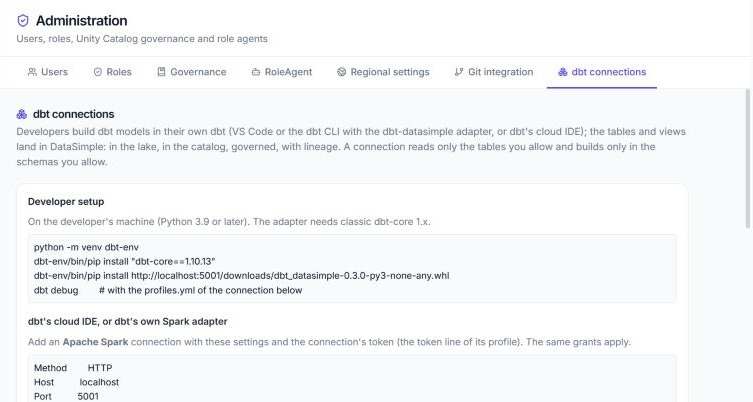
- New connection: name, default schema, days until it expires → Create connection. The
profiles.ymlwith the token is shown once; copy it to the developer securely. - Select the connection and Allow: Read a table for each source table, Build in a schema for each schema it may create tables and views in.
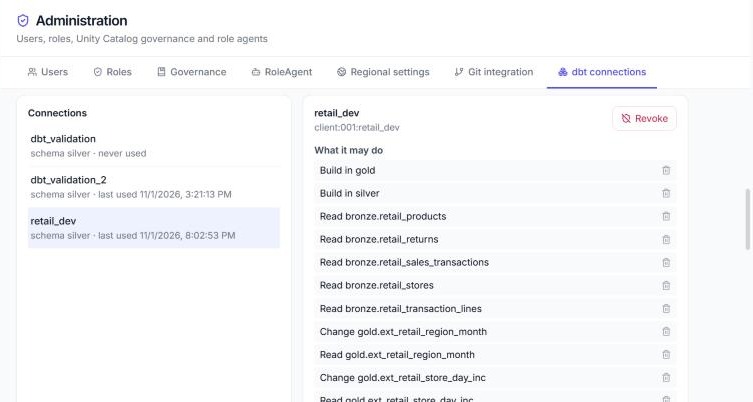
- Recent activity lists each statement with ok or denied. Revoke stops the connection at once; objects it built stay.
A new connection reads and builds nothing until allowed. Its grants never change people's access to the same tables. Objects it builds are owned by the connection and appear in the Lakehouse like any other.
Activity and error logs#
On the administrators' Ingestion screen:
- Activity Logs list every change request made in the application: who, when, what and the result. Identifiers and details are masked.
- Error Logs list actions that failed.
For feature-level audit entries (deployments, grants, assistant actions, token changes), use the History screen.
ELS_DB#
ELS_DB is a read-only browser for the DataSimple workspace database (PostgreSQL): schemas, tables, views and columns. From the tree you can preview a table or insert a SELECT into a notebook cell. It is meant for administrators who need to inspect workspace metadata. Lake data is browsed in Lakehouse and Data Lake, not here.
Kinetic board#
Kinetic turns pointing plus words into Spark SQL or PySpark. It is available to everyone with the Notebooks screen. See 27-kinetic-pen.md.
Developer examples#
Create a token, then use it#
Create the token on the Settings screen (a token cannot create tokens). Copy it when it is shown. Then:
curl -X POST https://<your-datasimple-host>/api/notebooks/spark/sql \
  -H "Authorization: Bearer <PERSONAL_TOKEN>" -H "Content-Type: application/json" \
  -d '{"sql":"SELECT region, SUM(amount) AS amount FROM gold.sales_by_region GROUP BY region"}'
Check who a token belongs to#
curl https://<your-datasimple-host>/api/auth/me -H "Authorization: Bearer <PERSONAL_TOKEN>"
List your tokens#
curl https://<your-datasimple-host>/api/auth/tokens -H "Authorization: Bearer <PERSONAL_TOKEN>"
The answer lists name, prefix, expiry, revoked and last-used times; never the token itself.
See which screens you have#
curl https://<your-datasimple-host>/api/tabs -H "Authorization: Bearer <PERSONAL_TOKEN>"
The answer lists the screen keys your role allows. A 403 No access to ... from another call means one of these keys is missing; ask an administrator.
What a token is refused#
curl https://<your-datasimple-host>/api/admin/users -H "Authorization: Bearer <PERSONAL_TOKEN>"
{ "success": false, "code": "TOKEN_NOT_ALLOWED",
  "error": "An API token cannot manage tokens, users, roles, passwords or credentials. Sign in to the application to do this." }
Security and permissions#
- Administration is for administrators only. Others get 403
Admin access required. - Tokens act as their owner. Same role, screens, grants and tenant. They cannot escalate: no token management, no user or role administration, no creation of other credentials.
- Own tokens only. Nobody can see or revoke another person's tokens.
- Screen access is enforced on the server, not only by hiding screens.
- Audit. Token creation and revocation appear on the History screen. Every change request also appears in Ingestion → Activity Logs.
- Protected accounts cannot be changed by other administrators.
Settings you can change#
| Setting | Where | Who |
|---|---|---|
| Personal defaults | Settings | Each user |
| Personal API tokens | Settings | Each user |
| Users, roles, screen access | Administration | Administrators |
| Grants, groups, filters, masks, shares | Administration → Governance, Lakehouse | Administrators and owners with MANAGE |
| Git integration (repository, branch, token, replacements) | Administration → Git integration | Administrators |
Token limits are fixed: 25 active tokens per user; expiry 30, 90 or 365 days, or none.
Monitoring and troubleshooting#
- Administration → Roles shows each role's user count and screens.
- Ingestion → Activity Logs shows change requests; Error Logs shows failed actions.
- History shows token creation and revocation.
| Message | Meaning |
|---|---|
No access to <screen> (ask an administrator) |
Your role lacks the screen behind this action |
Admin access required |
You are not an administrator |
You already have 25 active tokens. Revoke one first. |
Token limit |
Only the admin account itself can change ... |
Protected account |
Role is assigned to N user(s). Reassign them first. |
Role still in use |
Limits#
- One role per user.
- 25 active personal tokens per user.
- Screen access changes reach all users of the role within about 30 seconds.
- Separate credentials for outside tools. Personal API tokens, dbt client keys (22-dbt.md) and Delta Sharing recipient tokens (14-datashare.md) are managed separately.