Overview#
The Kinetic pen turns pointing plus words into code. You click the columns or cells you mean, then say or type a short instruction such as days between this and this as delivery_days. The pen returns:
- the rule in plain words (for example Days from ship_date to delivered_at),
- the expression in Spark SQL and in PySpark,
- the full code for a cell, in both languages,
- a preview of the result on the sample rows already on screen.
The pen lives in two places:
| Where | How to open | Data it points at |
|---|---|---|
| Kinetic page | Left rail → Workflows & Pipelines → Kinetic | The first 50 rows of a catalog table in datasimple.bronze, datasimple.silver or datasimple.gold |
| Notebook result grid | Pen button next to the row count of any cell result | The rows of that cell's result |
This chapter covers both, with the Kinetic page first. The short summary in 18-workspace-and-administration.md still holds. This chapter adds the detail.
When to use it, and when to use a notebook. Use the pen when you know the rule in business words but not the exact function names, or when a business user wants to see the rule as a picture before anyone writes code. It is good at one step at a time: one new column, one filter or one total. Use a notebook directly when you need joins to other tables, several steps, window functions, writes, or anything longer than one expression. The pen hands its code to a notebook anyway. Nothing runs on the full table until a notebook cell runs it.
For how DataSimple, the Spark engine and the catalog fit together, see 01-architecture.md.
Key concepts#
| Term | Meaning |
|---|---|
| Pen | A mode of the grid. While it is on, a click on a header or cell adds a point instead of sorting or selecting. |
| Pointer (point) | One click: { t, kind, column, value, rowIndex }. kind is column (header), cell (a value) or row (the row number). t is milliseconds on the pen clock. |
| Pen clock | Starts when the pen is switched on or reset. Points and spoken words share it, so this can be matched to the point made at the same moment. |
| Deictic word | this, that, it, here, these, those, and the ordinals first, second, third, fourth. Each one is bound to a point. |
| Rules | The pen's built-in understanding of common instructions: date differences, date plus or minus, flags, labels (CASE), arithmetic, rounding, text case, joining text, totals and filters. Results are marked Exact only when the whole sentence was used: a column, number or operator word (plus, minus, times, divided by, percent …) left over means the rules did not understand it, and the AI model fallback answers instead. A less B percent and A plus 10% take the percent of A. A column that was pointed at but not used in the result is named in a warning. |
| AI model fallback | Used only when the rules cannot understand the instruction. The answer is checked against the known columns and a list of allowed functions. Results are marked Suggested, check it. |
| Live sketch | A rules-only check made about 450 ms after you stop pointing or typing. It draws the dashed plan picture. It never calls the AI model. |
| Plan picture | A flow of source → fields → step → result. It can be copied or downloaded as PNG or SVG. |
| Recording | A saved pen session: the points, the instruction text, the rule, the code and what you did with it. |
| Business formula | A draft Semantics metric made from the pen's SQL expression. See 13-semantics.md. |
| Audit trail columns | Columns whose names start with _. They are hidden in the grid by default, and a new column is always placed before them. |
How it works#
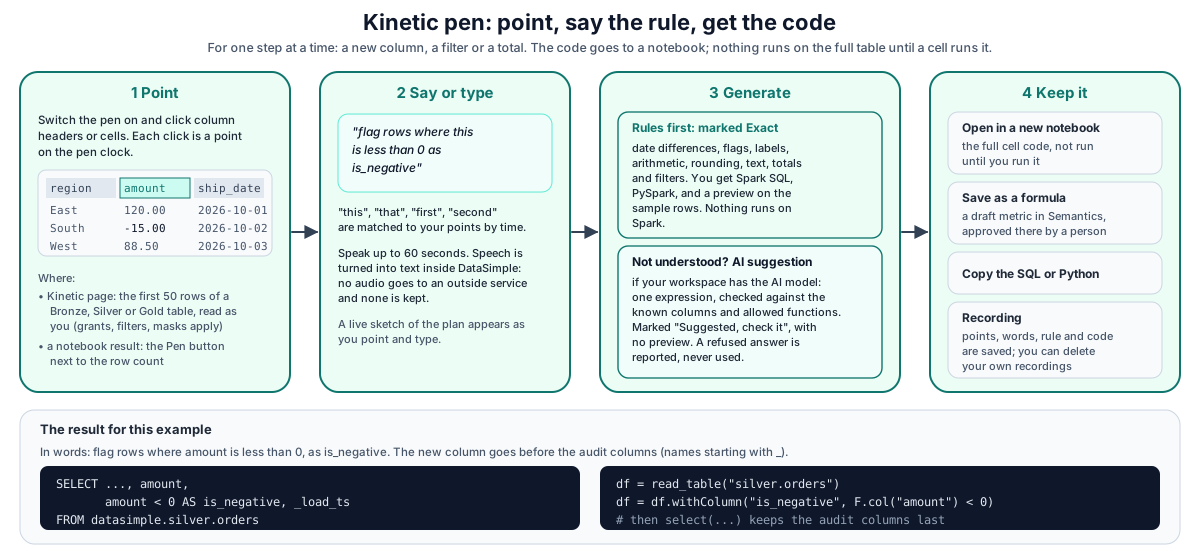
The flow, in order:
- The Kinetic page lists the tables of the chosen layer from the catalog and reads 50 rows as you, exactly like a notebook cell. The same grants, row filters and column masks apply (see Security and permissions).
- You switch the pen on and click headers or cells. Each point is recorded with its time on the pen clock.
- You type, or you record up to 60 seconds of speech. Speech is turned into text with word timestamps inside DataSimple. No audio is sent to any outside service and none is stored.
- Generate sends the column list, up to 50 sample rows, the points and the words to DataSimple.
- The rules try first. If they understand, DataSimple builds the SQL and Python and computes a preview on the sample rows. Nothing runs on Spark.
- If the rules do not understand, and an AI model is set up for your DataSimple environment, DataSimple sends a short prompt to the AI model. The answer must be one expression that uses only known columns and allowed functions. A refused answer returns 422. An accepted answer has no preview.
- You keep the result: open it in a new notebook, save it as a formula, or copy it. Each action is recorded.
Step by step: using the Kinetic page#
Open Kinetic. Left rail → Kinetic (in the Workflows & Pipelines group). Anyone with the Notebooks tab sees it.
Choose the layer. The selector at the top right lists
datasimple.bronze,datasimple.silveranddatasimple.gold, with Gold selected first. Changing the layer clears the table and the points. The refresh button reloads the table list.Choose the table. Click a table chip. The Find a table box filters the chips by name. A table click resets the pen, which clears the points and restarts the pen clock. A result made on the previous table is cleared too; if nothing was done with it, it is kept in Recent logic under the table it was made on.
Read the sample. The first 50 rows appear on the left. Each header shows the column name and its type. If the table has audit trail columns, an Audit columns (n) button shows or hides them. The choice is remembered in your browser and shared with the notebook grids. Hidden audit columns are still sent as columns and sample values, so a new column is placed before them.
Turn the pen on. On the Kinetic page the pen is on by default. The Pen button toggles it. Each time it is switched on, the points are cleared and the pen clock restarts.
Point at fields. What each click does:
You click Point kind What the pen uses A column header columnThe column. A cell cellThe column, plus the cell value. A value is used as a literal: amount over this gives amount > 300, and only this givesregion = 'East'.A row number rowNothing. A row point is ignored. If you made no column or cell point, the result says A whole row was pointed at; point at a column or a cell to use its column. The same thing twice in a row (none) The second click is ignored. There is no drag, range or multi-row selection. To use several fields, click them one after another. Each point gets an amber ring, a dotted trail, and an order number (1, 2, …) that also appears as a chip in the panel. Undo (or Backspace outside a text box) removes the last point. Clear removes them all. Esc closes the pen.
Say or type the intent. Type in the box and press Enter or Generate, or click the microphone, speak, and click again to stop (60 seconds at most). The transcript is added to the box, where you can correct it before you generate. There are three ways to combine points and words:
- Point and speak. Each this / that / it / here binds to the unused point closest in time, within 3 seconds. If none is close enough, it binds to the next unused point in pointing order.
- Point and type. Deictic words bind in pointing order. these / those take every unused point. first / second take that point by position. Points not mentioned in the words fill the gaps. For example, minus with
pricethencostpointed givesprice - cost. - Words only. Name the columns. An exact name, a multi-word name (ship date), or one word that matches exactly one column (delivered →
delivered_at) all work. A word that matches two columns adds a warning asking you to point or use the full name.
To name the result, end with call it X, named X or as X, or start with X = … or X if …. Without a name, the pen builds one, such as
days_from_ship_date_to_delivered_atoris_amount_gt_1000.Watch the plan picture. While you point and type, a dashed sketch appears (rules only, no AI model). It turns solid after Generate and goes back to a sketch when you change the points or text. Approved column meanings from Semantics are shown under the field names.
Review the generated code. The result card shows the explanation, the new column name, a badge (Exact from the rules, Suggested, check it from the AI model), any warnings, SQL and Python tabs, and a preview of up to 20 rows. On the Kinetic page the code always reads the whole table (
FROM datasimple.<layer>.<table>orread_table("<layer>.<table>")), never only the sample.Preview, then run. The preview is computed on the sample rows only. It is not a Spark run. To run the logic on the full table, use Open in a new notebook and run the cell there. The cell is created idle and never runs by itself.
Refine. Add or undo points, or change the words, and press Generate again. A result you did not act on is recorded as Not used before the new one replaces it. Discard clears the result, the text and the points; a result you did not act on is first kept as a Not used recording.
Save as a formula. Save as formula opens a form with a name and a one-line description already filled in. Save formula stores the SQL expression as a draft metric in Semantics, on the table you are pointing at. Every column the expression uses must exist on that table. A column computed by a cell's query is refused with the reason.
Keep the code. Open in a new notebook creates a notebook named
Kinetic <table> <date time>with the code in one cell of the active tab's language, then opens it. If the notebook cannot be created, the code is copied to the clipboard instead. Copy code copies the active tab.Load a recorded session. Recent logic (under the panel), or History in the panel, lists your last 50 recordings with their action (Inserted, Formula, Copied, Not used). A click loads the instruction text, the rule and the code back into the result card. It does not replay the points or rebuild the preview.
Delete a recording. In Recent logic or History, point at a recording and press the bin icon at its right, then press Delete to confirm (or Cancel). The recording, with its points, any cell values you clicked and the cell's code, is removed for good and disappears from the list. You can delete only your own recordings. Recordings are never deleted automatically; they stay until you delete them.
In a notebook#
Press Pen on a cell result. The grid switches to pointing. The context is the cell instead of a table:
- A SQL cell with one statement becomes a subquery:
SELECT …, <expr> AS <name> FROM (<your SQL>) AS _k. A cell with more than one statement is refused. - A Python cell that calls
spark.sql("""<one SELECT>""")reuses that SQL. A Python cell that ends in an expression is captured asdf, and a pandas result is turned back into Spark. Otherwise the code continues from adfdefined in the cell above. - Insert as new cell puts the code directly below the cell, idle.
What the rules produce#
| Instruction kind | Example | Code shape |
|---|---|---|
| New column | days between this and this as delivery_days | SELECT <business cols>, <expr> AS <name>, <audit cols> FROM … / df.withColumn(...) then df.select(...) |
| Filter | only paid, exclude rows where cost is null | SELECT * FROM … WHERE <cond> / df.filter(...) |
| Total | total amount by customer, count by status | SELECT <groups>, <agg> AS <name> FROM … GROUP BY <groups> / df.groupBy(...).agg(...) |
Division by a column or an expression is guarded: a / nullif(b, 0) in SQL and F.when(b != 0, b) in Python, so a zero gives an empty value instead of an error. Division by a fixed non-zero number, such as amount / 100, is written as is.
API reference (under /api/kinetic)#
| Method | Path | Purpose |
|---|---|---|
| POST | /generate |
Points + words → intent, column, SQL and Python, preview. rulesOnly: true skips the AI model. |
| POST | /transcribe |
Multipart field audio (webm, ogg or wav; up to 2 MB and 60 s) → { text, words: [{ w, t }] } |
| POST | /sessions |
Save a recording |
| GET | /sessions?limit=50 |
Your recordings, newest first (1 to 500, default 50) |
| GET | /sessions/:id |
One of your recordings, with its points and source code |
| DELETE | /sessions/:id |
Delete one of your recordings (another user's or another workspace's recording answers 404) |
| POST | /formula |
Save an expression as a draft Semantics metric |
Developer examples#
The outputs below come from a sample table datasimple.silver.orders with columns order_id, region, customer_id, first_name, last_name, amount, ship_date, delivered_at, _load_ts. Your column lists will differ.
Example 1: "total amount by region"#
Words only, or point at amount then region and type total by. Both give the same result. Row points are ignored, so a total is always over the whole table, not over selected rows.
SELECT region,
       sum(amount) AS total_amount
FROM datasimple.silver.orders
GROUP BY region
from pyspark.sql import functions as F

df = read_table("silver.orders")
df = df.groupBy("region").agg(F.sum(F.col("amount")).alias("total_amount"))
df
Example 2: flag negative amounts#
Point at amount and type flag rows where this is less than 0 as is_negative. The new column goes before the audit trail column:
SELECT order_id,
       region,
       customer_id,
       first_name,
       last_name,
       amount,
       ship_date,
       delivered_at,
       amount < 0 AS is_negative,
       _load_ts
FROM datasimple.silver.orders
The Python tab uses df.withColumn("is_negative", F.col("amount") < 0) followed by a df.select(...) that keeps the audit columns last. To keep only those rows instead, type only amount less than 0, which gives WHERE amount < 0.
Example 3: point at a cell to filter#
Click the cell East in the region column and type only this:
SELECT *
FROM datasimple.silver.orders
WHERE region = 'East'
Example 4: joining fields, not tables#
full name from first and last gives concat_ws(' ', first_name, last_name) AS full_name. "Join" in the pen means joining text. It never joins to another table. For example, pointing at first_name and last_name and typing join these to customers gives concat_ws(' ', first_name, last_name, customer_id), because customers matched customer_id. To join to a customers table, open the code in a notebook and write the join there.
HTTP: generate#
curl -s https://<your-datasimple-host>/api/kinetic/generate \
  -H "Authorization: Bearer <PERSONAL_TOKEN>" -H "Content-Type: application/json" \
  -d '{
    "context": {
      "kind": "table",
      "table": "datasimple.silver.orders",
      "sourceCode": null,
      "sourceLanguage": null,
      "columns": [{"name":"region","type":"string"},{"name":"amount","type":"double"}],
      "sampleRows": [{"region":"East","amount":120.5},{"region":"West","amount":-40}]
    },
    "pointers": [
      {"t":1200,"kind":"column","column":"amount","value":null,"rowIndex":null},
      {"t":2100,"kind":"column","column":"region","value":null,"rowIndex":null}
    ],
    "instruction": {"text":"total by","words":null},
    "target": "sql"
  }'
Response (shortened):
{
  "success": true,
  "intent": { "op": "aggregate", "inputs": ["amount", "region"], "name": "total_amount", "unit": null,
              "explanation": "Total amount by region" },
  "column": { "name": "total_amount", "expression_sql": "sum(amount)",
              "expression_py": "F.sum(F.col(\"amount\"))", "group_by": ["region"] },
  "code": { "sql": "SELECT region,\n       sum(amount) AS total_amount\nFROM datasimple.silver.orders\nGROUP BY region",
            "python": "from pyspark.sql import functions as F\n\ndf = read_table(\"silver.orders\")\n..." },
  "preview": { "columns": ["region", "total_amount"],
               "rows": [{ "region": "East", "total_amount": 120.5 }, { "region": "West", "total_amount": -40 }] },
  "source": "rules",
  "target": "sql",
  "ambiguities": []
}
Add "rulesOnly": true to get the sketch behaviour. An instruction the rules do not understand then returns 422 without calling the AI model.
HTTP: transcribe, save, list, formula#
BASE=https://<your-datasimple-host>/api/kinetic
AUTH="Authorization: Bearer <PERSONAL_TOKEN>"

# Speech to text
curl -s $BASE/transcribe -H "$AUTH" -F "audio=@speech.webm;type=audio/webm"

# Save a recording
curl -s $BASE/sessions -H "$AUTH" -H "Content-Type: application/json" \
  -d '{"context":{"table":"datasimple.silver.orders","sourceLanguage":null,"sourceCode":null},
       "pointers":[{"t":1200,"kind":"column","column":"amount","value":null,"rowIndex":null}],
       "instruction":{"text":"amount less than 0 call it is_negative"},
       "result":{"intent":{"op":"flag","name":"is_negative"},
                 "column":{"name":"is_negative","expression_sql":"amount < 0"},
                 "code":{"sql":"SELECT ..."}},
       "action":"copy","notebookId":null}'
# -> {"success":true,"id":"42","created_at":"..."}

# List and fetch
curl -s "$BASE/sessions?limit=20" -H "$AUTH"
curl -s $BASE/sessions/42 -H "$AUTH"

# Delete one of your recordings
curl -s -X DELETE $BASE/sessions/42 -H "$AUTH"
# -> {"success":true,"id":"42"}

# Save as a business formula (a draft Semantics metric)
curl -s $BASE/formula -H "$AUTH" -H "Content-Type: application/json" \
  -d '{"name":"is_negative","expression_sql":"amount < 0","table":"silver.orders",
       "description":"Order amount below zero"}'
# -> {"success":true,"id":"17","where":"Semantics"}
Security and permissions#
Access. The Kinetic page and the /api/kinetic API are available to anyone with the Notebooks tab. Every call requires a signed-in user or personal token and works within your own tenant.
Sample read. The 50-row sample is read as the signed-in user, exactly like a notebook cell, so Unity Catalog grants, row filters and column masks apply, and PII display masking is applied to the result. A user who cannot read the table gets the Spark error message instead of rows. The read appears in History as notebook.spark_run. In a notebook, the pen uses the rows of a result you already have.
What the AI model receives. The AI model is used only when the rules cannot understand the instruction and the request is not rulesOnly. The prompt contains:
| Sent | Detail |
|---|---|
| Column names and types | Every column in the sample, including hidden audit trail columns |
| Approved column meanings | Only approved meanings for this table's columns, with their unit |
| Sample rows | The first 5 sample rows, with every column's values, as shown to you (masked values stay masked) |
| Pointed columns | The names of the columns you pointed at |
| Instruction | The typed or transcribed text, up to 2,000 characters |
Pointed cell values are not listed separately, but they normally appear in the 5 sample rows. The table name, the cell's source code and your identity are not sent. The live sketch, a request with rulesOnly: true, and any instruction the rules understand never reach the AI model. The AI fallback is used whenever an AI model is set up for your DataSimple environment (see 17-assistants.md). Without one, an instruction the rules do not understand returns 422 Could not understand; try: ….
What comes back is checked. The AI model's answer is accepted only if every input and group column is a known column, the SQL expression is a single expression (no SELECT, FROM, JOIN, ;, comments, qualified names or writes) using only allowed functions, and the Python expression uses only F. functions and column names. If the Python expression fails the check, it is replaced with F.expr("<checked SQL>"). The result is marked Suggested by the assistant: check the formula before you use it. It has no preview.
Speech. Audio is sent only to DataSimple. It is converted to text in memory and never written to disk or stored. Only the text is kept, and only when a recording is saved.
What is stored and logged.
| Event | Where |
|---|---|
| Sample read | History (notebook.spark_run) and Usage, as for any cell |
| Generate | Each generated result is kept as a recording once you act on it (open in a notebook, insert, copy or save as a formula), or when you generate again, discard, load another recording or close the pen. A result you did not act on is kept as Not used. |
| Recording | Kept per user until that user deletes it. A recording keeps the points, including any cell values you clicked, and, in a notebook, the cell's code. |
| Recording deleted | History entry kinetic.session_delete. The recording itself is gone. |
| Formula | History entry semantic.metric_upsert (via Kinetic), plus the draft metric itself |
Recordings are visible only to the user who made them, and only that user can delete them. Nothing expires automatically: delete a recording when you no longer need it, especially one that holds cell values you clicked (step 15).
Monitoring and troubleshooting#
| Symptom | Meaning and fix |
|---|---|
| Couldn't read the sample or a Spark error line | The sample read failed: no grant on the table, a table with no data files, or the Spark engine not ready. Check the table in Lakehouse and in History. |
| Unknown column "x". Available columns: … (400) | A point or a column x phrase names a column that is not in the list. Point again or use a listed name. |
| Could not understand; try: … (422) | The rules did not match and the AI model is not available, or it returned nothing. Rephrase using the patterns in What the rules produce, or point at the fields. |
| … (the suggested formula was refused: function x is not allowed) (422) | The AI model's answer failed the check. Simplify the instruction or write it in a notebook. |
| "x" could mean a or b warning | One word matched two columns. Point at the column or use the full name. |
| x already exists; the new value replaces it | The chosen name is already a column. Add call it |
| The cell holds more than one SQL statement (400) | Notebook pen on a multi-statement cell. Use a cell with one SELECT. |
| Formula refused: has no column … | The expression uses a column computed by the cell's query. Save the query as a table first, or point at a table that has the column. |
| Speech is not available on this server (501) | Speech is not set up in your DataSimple environment; the microphone button is disabled with the reason. Type instead, or ask your administrator. The first transcription after speech is set up can take a few minutes. |
| 413 on transcribe | Clip larger than 2 MB or longer than 60 s. |
| Kinetic isn't switched on for this server yet | Kinetic is not available in your DataSimple environment (the service answered 404 or 501). Ask your administrator. |
| No access to notebooks (ask an administrator) (403) | Your role does not include the Notebooks tab. Ask your administrator. |
Failures from /api/kinetic return { success: false, error }.
Limits#
- One step at a time. One column, filter or total per Generate. No joins to other tables, no window functions, no multi-step pipelines.
- No selection by rows or ranges. Row points are ignored. There is no drag or range select, and totals and filters always apply to the whole table or cell result, not to the rows you clicked.
- "Join" means text. join, combine and merge build
concat_ws. They never join tables (see Example 4). - Preview is the sample only. It covers at most 50 rows (20 shown) and is not computed by Spark, so edge cases in Spark semantics can differ slightly. AI model suggestions have no preview at all.
- Loading a session is not a replay. It restores the text, rule and code, but not the points, the preview or the plan picture's sample values.
- Size limits: 50 sample rows, 100 points per Generate, 200 points per saved recording, 400 spoken words, 2,000-character instruction, 20-row preview, 2 MB and 60 s of audio, 3-second binding window, 4,000-character formula.
Related content#
- 01-architecture.md: platform map
- 02-notebooks.md: where the generated code runs
- 07-lakehouse-and-governance.md: grants, row filters and column masks applied to the sample
- 13-semantics.md: business meanings and metrics (formulas)
- 17-assistants.md: the AI model and its guardrails
- 18-workspace-and-administration.md: tab access and the Kinetic summary
- 19-app-server-and-security.md: sign-in and personal tokens
- 21-ds-tables-and-scd.md: audit trail columns
- Spark SQL reference: https://spark.apache.org/docs/latest/sql-ref.html
- PySpark functions: https://spark.apache.org/docs/latest/api/python/reference/pyspark.sql/functions.html